-
Described from the user’s point of view.
-
Largely implementation dependent.
-
Thinking about high-level concepts allows us to consider more design possibilities than if we locked ourselves down with a technology-dependent technique.
-
Not to be confused with software architecture patterns!
Interaction in Virtual Reality
 Editovat
- Human-centered interaction design
-
Focuses on the human side of human-computer interaction — the interface from the user’s point of view. In the ideal case, VR experiences should be not only effective, but also engaging and enjoyable.
- Intuitiveness
-
-
An intuitive interface can be quickly understood, accurately predicted, and easily used.
-
Intuitiveness in the mind of the user but the interface and the world can be designed to help form a useful mental model.
-
Exploit interaction metaphors that the users are likely already familiar with.
-
In VR, the users are cut off and it’s thus even less likely that they will read a manual or talk to someone.
-
- Break-in-presence
-
When the illusion of being in virtual world is broken and the user realizes they are in the real world wearing a headset. Can be caused by, for example, rendering issues, loss of tracking, tripping over a wire, people talking IRL,etc.
- Proprioception
-
Sensation of limb and body pose and motion. Derived from nerves in muscles, tendons, joints, etc. It’s what allows us to touch our nose even with eyes closed. Can be leveraged in VR as, for example, users don’t need to see the tools in their hands to use them.
Interactions done relative to the body’s frame of references are egocentric; the user’s body is in the world. The opposite, where the user manipulates the world outside of it, are exocentric interactions.
- Gorilla arm
-
Arm fatigue caused by extended usage of gesture-based interfaces. Typically happens when the user must hold hands above waist for more than 10 seconds.
- Clutching
-
Having to release and re-grasp an object to complete a task because it’s impossible to do in one motion (e.g., wrench).
- Interaction pattern
-
Generalized high-level interaction concept. Describes a common approach usable across many different applications.
- Interaction technique
-
A specific and technology-dependent "implementation" of an interaction pattern.
-
When one technique fails, others from the same pattern can be considered.
-
There is no single best technique or pattern. They all have trade-offs.
-
Norman’s principles of interaction design
- Don Norman
-
-
American researcher, professor, and author.
-
Wrote The Design of Everyday Things.
-
Expert on design, usability engineering, and cognitive science.
-
Advocate of user-centered design.
-
His principles are: affordances, signifiers, constraints, feedback, and mappings (see all of them below).
-
Obrázek 1. The Design of Everyday Things
- Cycle of interaction
-
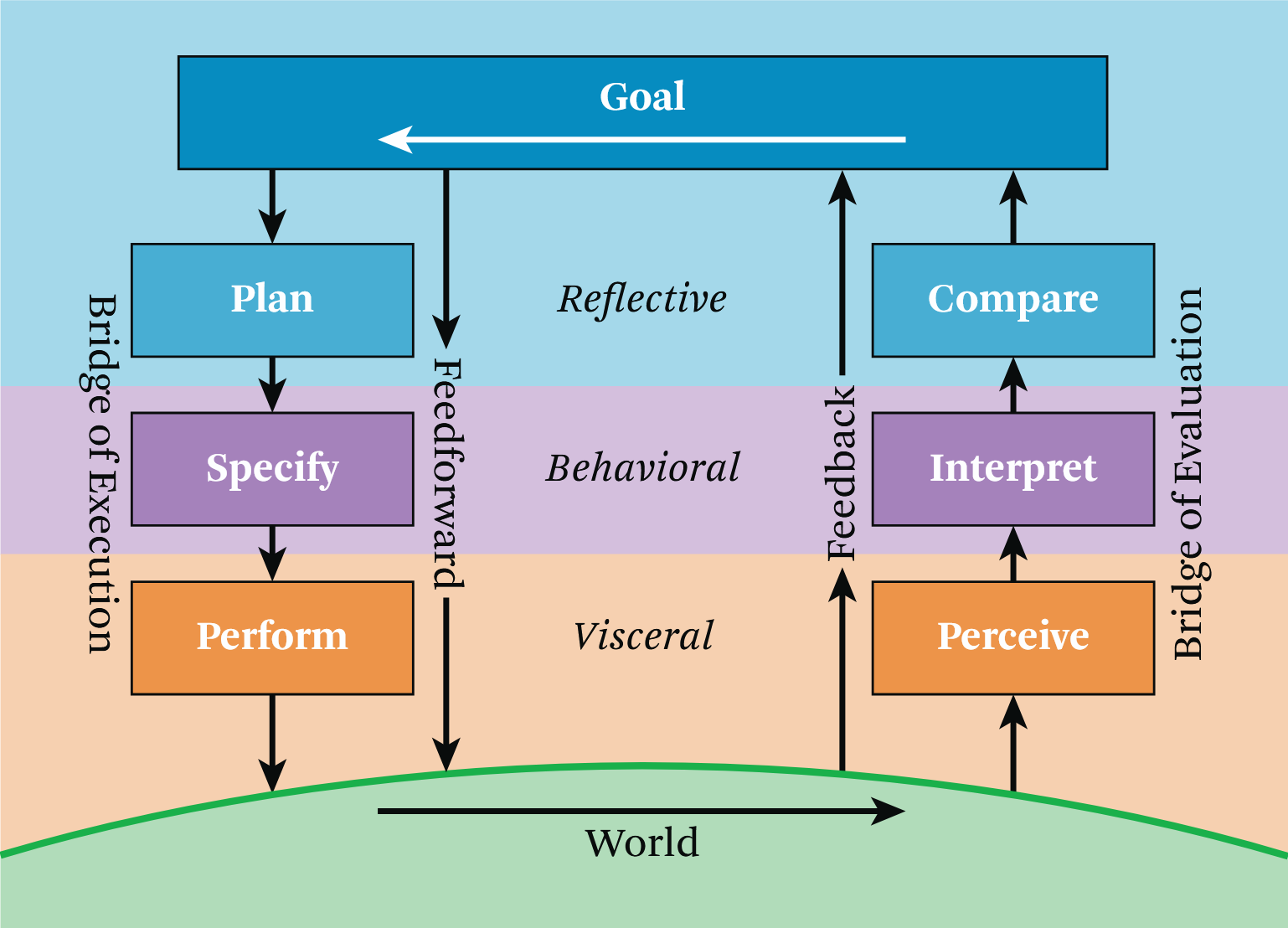
High-quality interaction design considers tasks, requirements, intentions, and desires at each of these seven stages:
-
Forming the goal (one stage)
-
Executing the action
-
Bridges the gap between goal and result.
-
Three stages:
-
plan — What are my options of accomplishing my goals?
-
specify — What is the specific sequence of actions I have to do?
-
perform — Do the action.
-
-
The user should be able to anticipate the result (feedforward) based on signifiers, constraints, mappings, and their mental model.
-
-
Evaluating the results
-
Allows the user to judge whether their goal has been achieved, make adjustments, and form new goals.
-
Three stages:
-
perceive — What happened?
-
interpret — What does it mean?
-
compare — Is this what I wanted?
-
-
Feedback is obtained by perceiving the impact of the action.
-
 Příklad 1. Moving a boulder
Goal: Move a boulder blocking the path.
Plan: Go to the boulder (or select it from a distance) and move it.
Specify: Shoot a ray from the hand, intersect the boulder, push the grab button, move the hand, release the grab button.
Perfom: Move the boulder.
Perceive: The boulder is now at a new location.
Interpret: The boulder is no longer in the path.
Compare: I have cleared the route and can continue on my path.
-
- Conscious and subconscious thought in the cycle of interaction
-
-
Goals tend to be reflective (slow conscious thought).
-
We are often unaware of the execution and evaluation stages unless we encounter an obstacle.
-
Specify and interpret are often semi-conscious.
-
Perform and perceive are typically automatic and subconscious.
-
-
- Gulf of execution
-
The goal is known, but the path to it isn’t.
- Gulf of evaluation
-
When we don’t understand the results of an action.
- Goal-driven behavior
-
The user themself has initiated the interaction cycle by setting a goal for themselves.
- Data-driven / event-driven behavior
-
Something happened in the world. The goal is opportunistic. It’s less precise, less certain, but also requires less mental effort.
- Affordances
-
Relationships that define what actions are possible and how something can be interacted with by a user.
-
"to afford" = "to offer" / "to make possible"
-
Relationship between the properties of an object and the capabilities of an agent (typically a human user).
-
Example: Light switch on a wall can toggle the light but only for those that can reach it.
-
Example: Glass affords transparency for non-blind people. Glass doesn’t afford passage of solid objects.
-
Example: Buttons can be pressed by people with hands.
-
-
They don’t have to be perceivable to exist.
-
- Signifiers
-
Perceivable indicators that communicate the purpose, structure, operation, and behavior of an object to a user (i.e., make certain affordances perceivable).
-
Informs the user what is possible before they interact.
-
Examples: signs, labels, images, feel of a button on a controller, etc.
-
Misleading signifiers can be ambiguous or represent an affordance that doesn’t actually exist.
-
Can be unintentional but useful. For example, garbage on a beach represents unhealthy conditions.
-
Example: Something looks like a drawer although it cannot be opened.
-
Can be intentional and purposeful. For example, to motivate the user to find a key to the drawer.
-
-
Do not have to be attached to an object. Can signify general information, such as current interaction mode.
-
- Constraints
-
Limitations of actions and behavior.
-
Signifiers should be used to make constraints easy to understand.
-
If communicated well, they can improve accuracy, precision, and user efficiency.
-
Should be consistent, so that learning can be transferred across tasks.
-
Experts should be able to disable constraints.
-
In VR, they are typically physical or mathematical, but in general can be also be semantic or even cultural.
-
Degrees of Freedom (DoF) — Number of independent dimensions available for motion of an entity.
-
6 DoF — 3 axes for movement, 3 axes for rotation
-
Example: A UI slider has 1 DoF. It’s constrained to move either left or right.
-
-
Constraints can add realism (e.g., preventing users from clipping through walls) but can also make interactions more difficult.
-
Example: It can be useful to leave virtual tools hanging in the air instead of picking them up from the ground.
-
-
- Feedback
-
Communicates results of an action or task status. Helps the user understand current state of things and drive future action.
-
Lack of immediate visual feedback when the user moves can result in break-in-presence or even motion sickness.
-
Haptic feedback is especially difficult to implement (e.g., real forces caused by walls) but sensory substitution can be used.
-
Should be prioritized based on importance to avoid overwhelming the user.
-
Instead of putting stuff on a heads-up display (or near the head), consider putting it near the waist. There, it can be easily accessed but isn’t obtrusive.
-
Users should be allowed to configure or disable it.
-
- Sensory substitution
-
Replacement of an ideal sensory cue, which is unavailable, with one or more other sensory cues.
-
Ghosting — Second rendering of an object in a different pose.
-
Highlighting — Visually outlining an object.
-
Audio cues — For example, sounds that signify collision.
-
Passive haptics — Static objects IRL that can be touched.
-
Rumble — Vibration of input devices.
-
- Mappings
-
Correlation between two sets of things. Typical example is a set of inputs controling a corresponding set of actions (e.g., a row of light switches controls a row of lights). We also use the related term compliance instead of mappings.
-
Mappings are useful even when the thing cannot be manipulated with directly (e.g., using a broom to flip a switch).
-
Input devices have a mapping natural for some interaction pattern but poor for another.
-
Example: Hand-tracked devices are good for pointing, not so much as a steering wheel.
-
-
Non-spatial mappings transform spatial input to non-spatial and vice versa.
-
Example: Raising hand means "more". Lowering hand means "less".
-
Some are universal, other may be personal or culture dependent.
-
-
- Compliance
-
Matching of sensory feedback with input devices across time and space. Results in perceptual binding — feeling of interacting with one coherent object.
-
Spatial compliance — Direct mappings in space lead immediately to understanding.
-
Position compliance — Co-location of sensory feedback and input device position. For example, when we see our hand in VR where we would expect based on our proprioception.
-
Directional compliance — Objects in VR should move and rotate as the manipulated input device. It’s the most important spatial compliance. For example, mouse and cursor.
-
Nulling compliance — When an input device is returned to its initial placement, its VR object is too. Allows the user to use their "muscle memory" to remember the initial object placements.
-
-
Temporal compliance — Different types of feedback (e.g., proprioceptive and visual) to the same action should be synced.
-
Visio-vestibular compliance — Viewpoint feedback should be immediate. When we move our head, we should see and perceive with the inner ear what we’d expect. Especially important to avoid motion sickness.
-
If action cannot be completed immediately, there should be some kind of feedback implying that the action is in progress. However, slow of poor feedback is more frustrating than no feedback.
-
-
Modes and flow
- Modes
-
Complex applications with different types of tasks may require different interaction techniques. One or more settings that change the available interaction techniques.
-
Current mode can be changed by pressing a button, selecting it in a UI panel, or it may be order-dependent (i.e., activate automatically based on previous actions).
-
The current mode should always be made clear to the user.
-
- Flow
-
Seamless integration of various tasks and techniques provided by the application.
-
Example: An object should be selected first, before an action can be done upon it.
-
Sequence of interactions should occur without distractions.
-
Users should not have to physically (e.g., eyes, hands, head) or cognitively move between tasks.
-
Lightweight mode switching, physical props, and multimodal techniques help maintain flow.
-
- Object-action vs action-object
-
People prefer to first think about an object and then about the action done on/with the object.
-
In natural language, action-object is more common (e.g., "Pick up the book.")
-
Object is concrete an easier to think about.
-
Action is abstract. It’s easier to imagine the action with an object already in mind.
-
- Multimodal interaction
-
When multiple input and output sensory modalities are available for accomplishing the same thing. Individual to both the application and the users.
-
It’s better the use a specialized modality when it’s clearly the best (e.g., selection by pointing for your app).
-
When user preference is divided, it may be better to implement both options.
-
Selection patterns
- Selection
-
Specification of one or more object before an action is done on these objects.
- Hand selection pattern
-
The user touches objects directly just as they would in the real world. They reach out with their hand, touch an object, and then grab it using some input.
-
When selection needs to be (somewhat) realistic.
-
Limited by what the user can physically reach. They may need to travel to the object first.
Techniques:
-
Realistic hands — As close to reality as possible. Arm pose may be computed using inverse kinematics. Measuring the user’s arms and adjustments to the environment may be necessary.
-
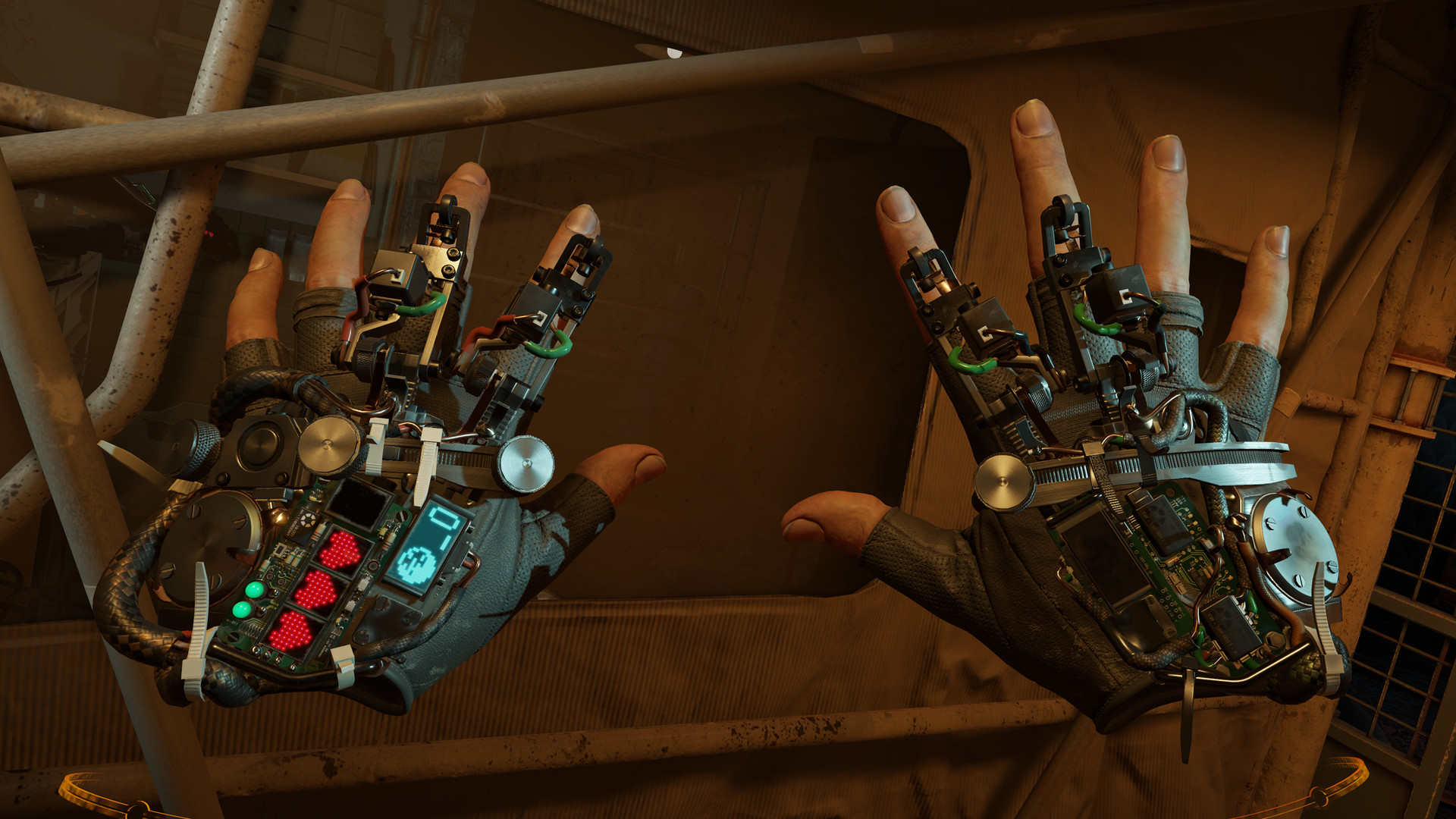
Non-realistic hands — Focus on usability rather than realism. Often floating hands without arms or abstract cursors. Reduce visual occlusion.
-
Go-go technique — When extended beyond 2/3 of reach, the arm grows non-linearly, allowing to pick up far-away objects.
-
- Pointing pattern
-
Extends a ray into the distance from an input device (e.g., finger, controller, head, etc.). The first intersected can ten be selected by using a trigger (e.g., controller button).
-
One of the most fundamental and used selection patterns.
-
Typically more effective than hand selection unless realism is required. When selecting objects beyond personal space, it’s faster and more precise.
-
Naive implementation can be imprecise due to hand tremor.
-
It can also be imprecise of the hardware of the input device is imprecise or loses tracking.
-
Dwell selection (pointing for a period of time) can be frustrating (especially with eye gaze). Don’t use unless necessary.
-
Shooting rays from hands is actually quite natural because of laser pointers.
Techniques:
-
Hand pointing — Ray from a hand/finger.
-
Head pointing — Ray from the center of vision.
-
Eye gaze selection — Selecting by looking with the eyes. Problematic because people expect to be able to look at stuff without it triggering something (Midas touch problem).
-
Object snapping — Fixes hand tremor imprecision by snapping/bending the ray towards the closest/most important object.
-
Precision mode pointing — "Slowed down" cursor. Can be combined with a zoom lense.
-
Two-handed pointing — Ray starts from the hand closer to the body and extends through the farther hand.
-
Obrázek 2. Semi-realistic hands in Half-Life: Alyx
- Image-plane selection pattern
-
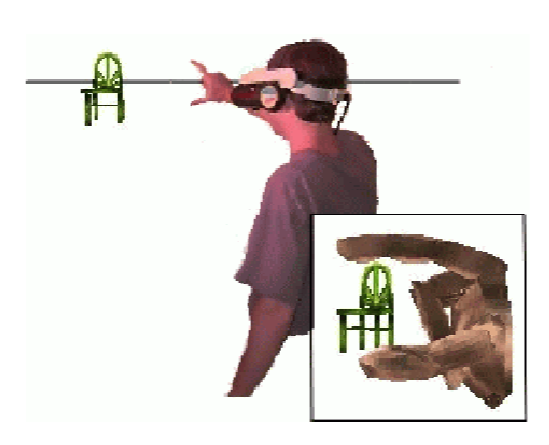
The user holds one or two hands between their eye and the desired object and uses a trigger a trigger when the object lines up with the hands and the eyes. (The "image" in the title refers to the 2D plane on which users make the selection.)
-
Simulates touch at long distances.
-
Works well at any distance as long as the object can be seen.
-
Don’t use when selection is frequent, because of gorilla arm.
-
Works for a single eye, so users should close the other.
-
The hands occlude the scene unless transparent.
Techniques:
-
Head crusher — Users positions their thumb and forefinger around the desired object.
-
Sticky finger — The object underneath the user’s finger gets selected.
-
Lifting palm — The user positions their palm so that it looks like the object is lying on it.
-
Framing hands — Using both hands, the user makes a frame around the object.
-
Obrázek 3. The head-crusher selection technique
- Volume-based selection pattern
-
Allows selection of a volume of space (e.g., box, sphere, or cone) that is independent of the objects/data being selected.
-
Good for selecting data when there are no geometrical surfaces (e.g., CT datasets).
-
Great for making selections inside point clouds, voxels, subsets of surfaces, or even empty space.
-
Can be difficult than selecting a single object.
Techniques:
-
Cone-casting flashlight — Pointing but with a cone instead of a ray. Aperture is a modification that allows the user to specify the size of the cone by bringinng the closer or further.
-
Two-handed box — Using both hands, the user positions and orients a box with snapping and nudging. Snap brings the box to the hand and allows setting its initial pose. Nudge enables precise adjustments; motion of the box after the initial position is locked to the hand; it can be reshaped with the other hand as well.21
-
Manipulation patterns
- Manipulation
-
Modification of attributes (e.g., position, orientation, scale, shape, color, etc.) for one or more objects. Typically follows selection.
- Direct hand manipulation pattern
-
After selecting an object, it is attached to the hand and moving with in until released.
-
More efficient and satisfying than other manipulation patterns.
-
Like hand selection, it is limited by the reach of the user.
-
For high realism, use in combination with hand selection.
Techniques:
-
Non-isomorphic rotations — Allow more rotation with smaller wrist movements. Reduces clutching.
-
Go-go technique — Just like with hand selection. It allows manipulation as well.
-
- Proxy pattern
-
Physical or virtual object that represents and maps directly to a remote object. As the user manipulates the proxy, the remote object is manipulated with as well.
-
Useful for remote manipulation or when the object or the user themself is scaled.
-
Can be difficult if there is no directional compliance (e.g., when there is a rotational offset between the proxy and the remote object).
-
Use tracked physical props for tactile feedback and realism.
Techniques:
-
Tracked physical props — The user manipulates a physical object. Natural two-handed interactions and tactile feedback (passive haptics). Extremely easy to use without training.
-
- 3D tool pattern
-
The user manipulates an intermediary 3D tool that in turn manipulates an object. For example, a stick that extends one’s reach.
-
Enhances manipulation capability of the hands.
-
Can take more effort if the user must first travel and maneuver to an appropriate angle to apply the tool.
Techniques:
-
Hand-held tools — Virtual objects attached to the hand. Can be used from afar (e.g., TV remote) or directly (e.g., a paintbrush). Often easier to use and more direct than widgets.
-
Object-attached tools — The tool is attached to the object being manipulated (not the hand). Signifier representing the affordance between the object, tool, and user (e.g., vertex handles in the corners, or a color icon that triggers a color cube tool). The signifier should make obvious what the tool does.
-
Jigs — Similar to real-world physical guides used by carpenters and machinists. Grids, rulers, other shapes that the user attaches to object vertices, edges, and faces. Allows customizable constraints and snapping. Jigs can be combined into jig kits.
-
Compound patterns
Compound patterns combine two or more patterns into more complicated mechanisms.
- World-in-Miniature (WiM)
-
An interactive live 3D map. An exocentric miniature of the world.
-
Provides situational awareness, user-defined proxies, and quick movement.
-
Features a "doll", an avatar for the user that matches their movements. A transparent frustum may show what the user currently sees.
-
Use maps where forward is always up so that the orientation of the map matches the orientation of the world.
-
Allow disabling for advanced users.
-
Techniques:
-
Voodoo doll — Combines WIM with image-plane selection. The user has a partial WIM in non-dominant hand and a proxy for the manipulated object in the dominant hand. By moving the proxy doll in relation to the world doll, the user can position and orient the manipulated world object. The world doll does not move.
-
Moving into one’s own avatar — The user can move their own doll in the WIM. Don’t map the user’s doll’s movement to the user’s perspective (causes motion sickness), teleport instead. Using multiple WIMs can act as a portal between worlds.
-
Viewbox — The user creates the WIM using volume selection. It acts as a reference: it and its insides can be manipulated. Make sure it’s not recursive.
-
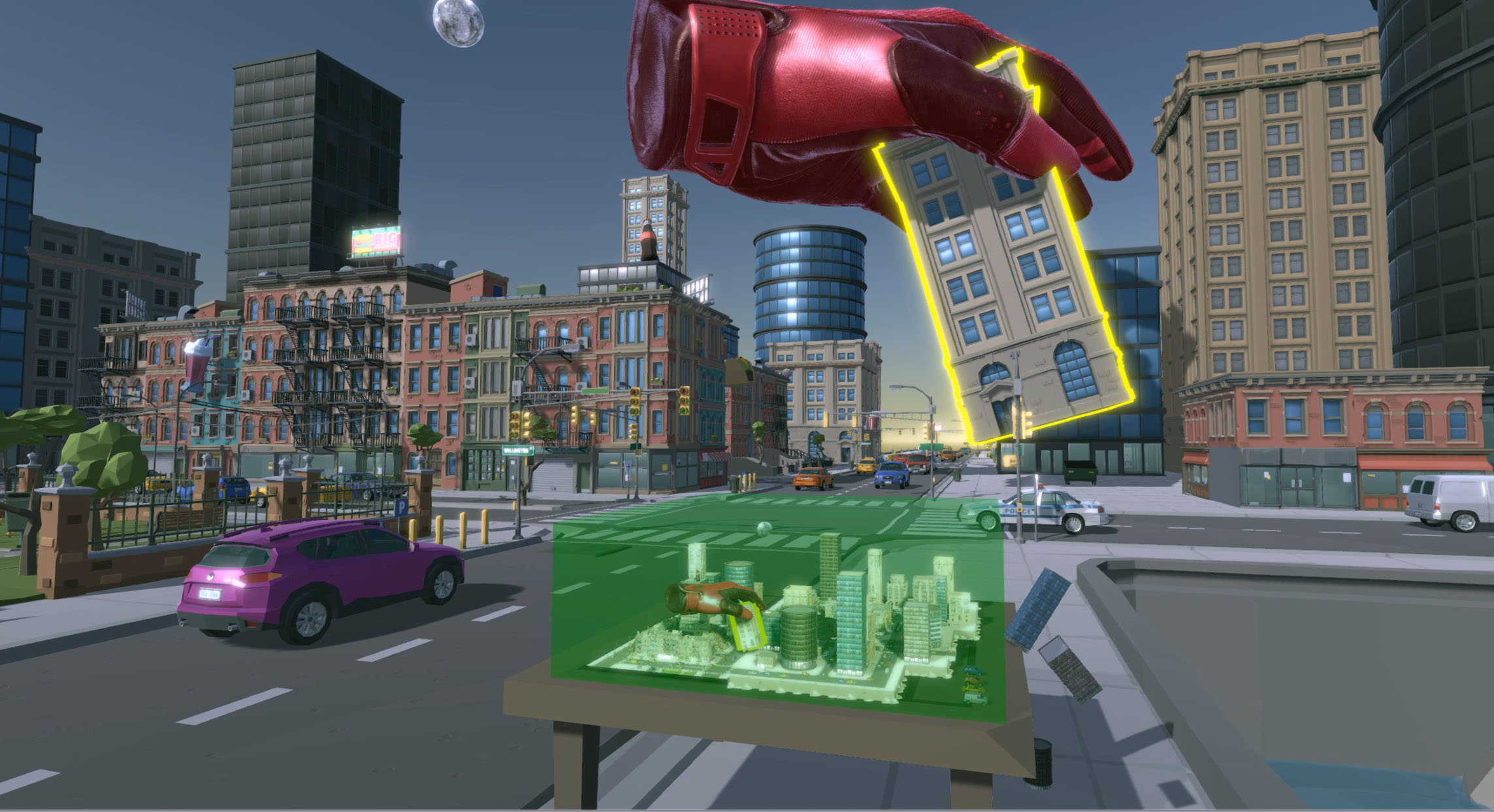
Obrázek 4. World-in-Miniature [rollerchimp]
Questions
- How can it be applied to SoftVis in VR?
-
-
It depends on what is visualized. But there is typically a lot of data either related to the source code or to its execution.
-
Suitable selection and manipulation patterns are key.
-
World in miniature may be very suitable if the visualization is very large.
-
If source code is visualized, the user should be provided with a way to have a quick look at it without having to exit VR. This might mean reimplementing portions of an IDE in the visualization which could be difficult.
-
- What should a designer of a SoftVis VR visualization think about from the design perspective?
-
-
First and foremost, is there a good enough reason to use VR? What’s the advantage that a regular 2D or 3D visualization can’t have?
-
Software artifacts are very abstract but interaction in VR is very visceral (especially with hands). Most important are the mappings and metaphors giving the abstract concepts a more concrete representation that can be manipulated.
-
What tasks is the user going to want to do? From that question we can start thinking about the metaphors, affordances, signifiers, constraints, and suitable interaction patterns.
-
- For example, let’s say Ritgard was in VR. What would it be like?
-
-
Hand gesture or at least a 3D tool for moving and resizing the sliding time window.
-
Hand selection and manipulation for looking at the details of a single developer conversation.
-
A floating/hand-held panel showing the actual conversation on GitHub.
-
Maybe some object-attached tools for changing properties of the conversion: status, assignees, labels.
-
"Tree shaking" for closing would be fun. Or maybe setting them on fire.
-
-
It could be interesting to play with a first-person view with a WIM vs a purely exocentric visualization.
-
If the islands represented labels instead of ML-derived topics, the user could "replant" the trees to give them different labels.
-
Sources
-
Jason Jerald, The VR Book: Human-Centered Design for Virtual Reality, 2016
-
Rollerchimp, Miniature Metaworlds, 2019